Not just another fork. Event Calendar NG is a complete redesign of the classic Event Calendar widget: a new look, new views, tasks, meetings, CalDAV and KDE PIM, offline start and much more. It keeps the same widget id, so it replaces an existing Event Calendar and keeps its settings.
Features
Every view you need
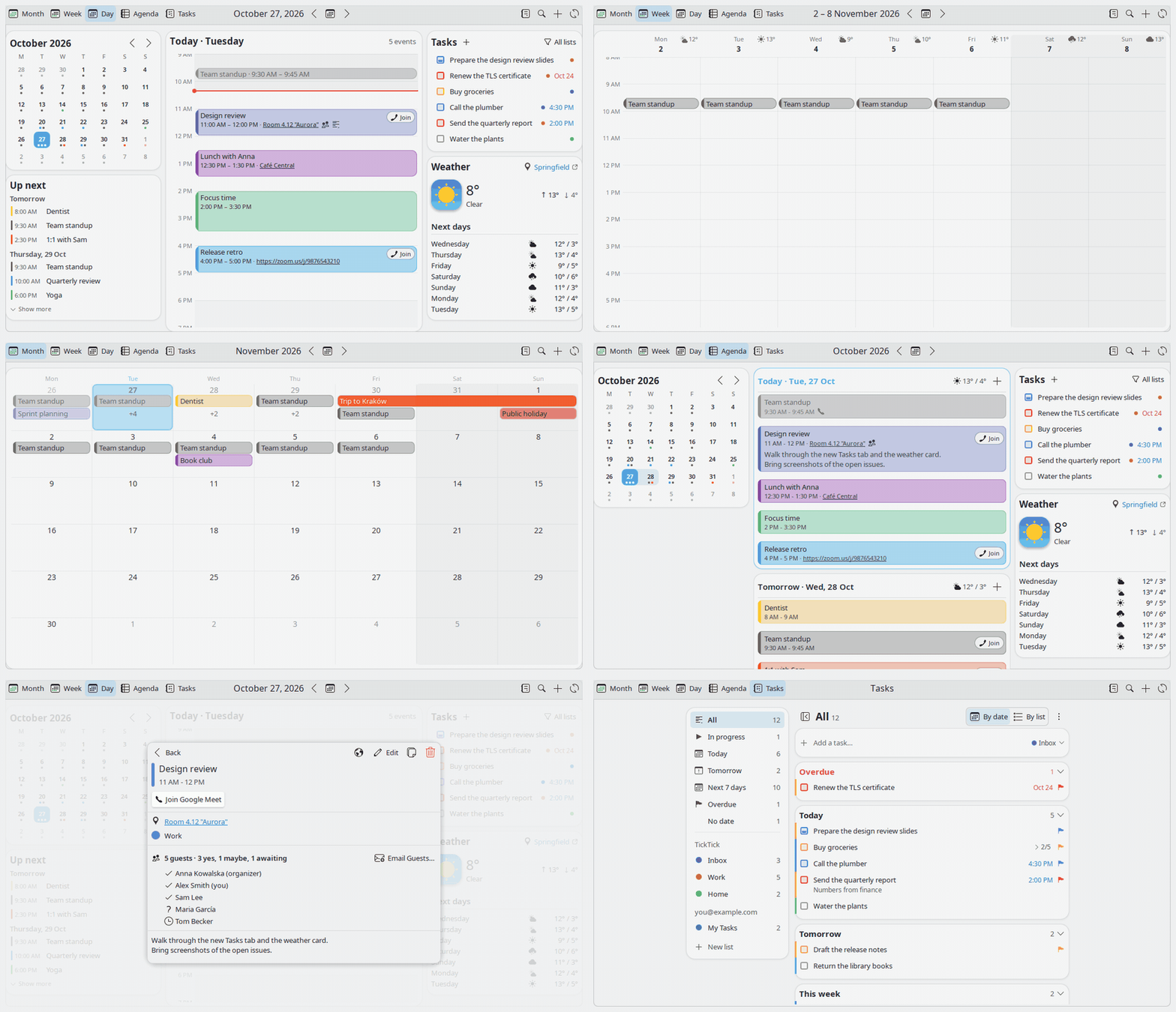
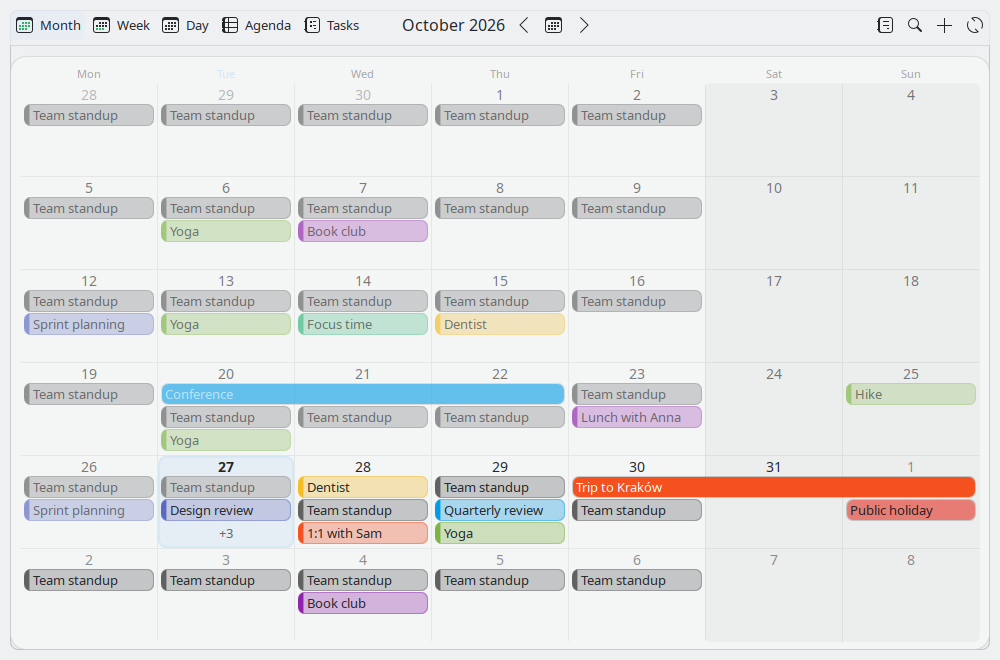
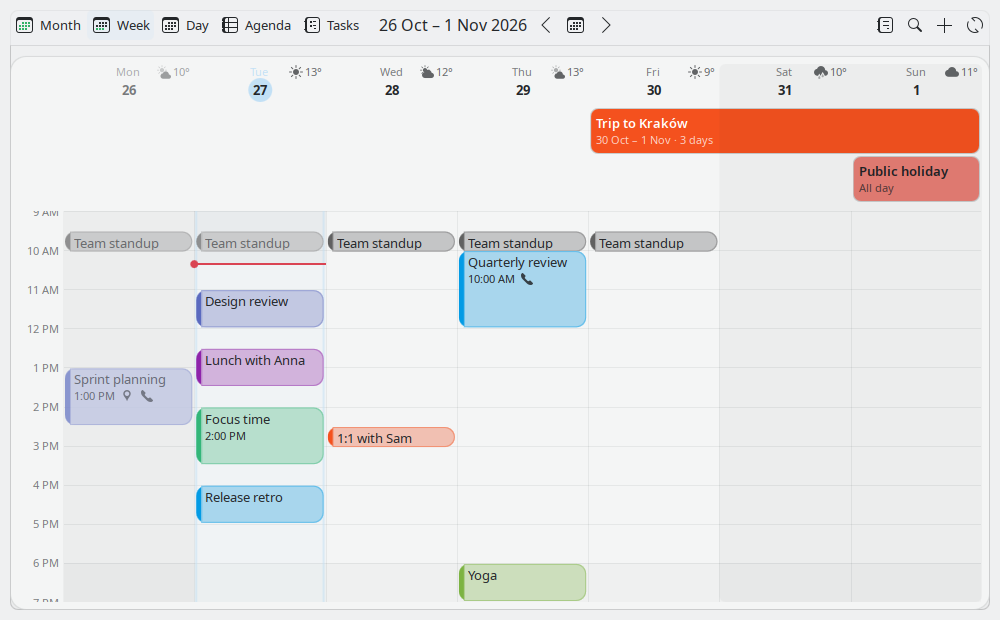
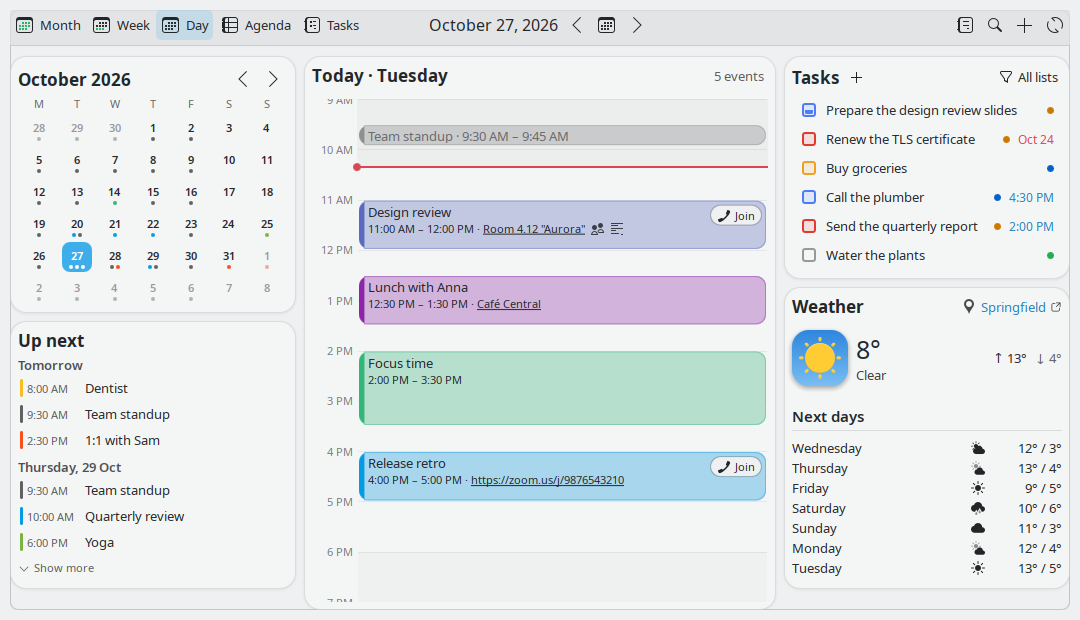
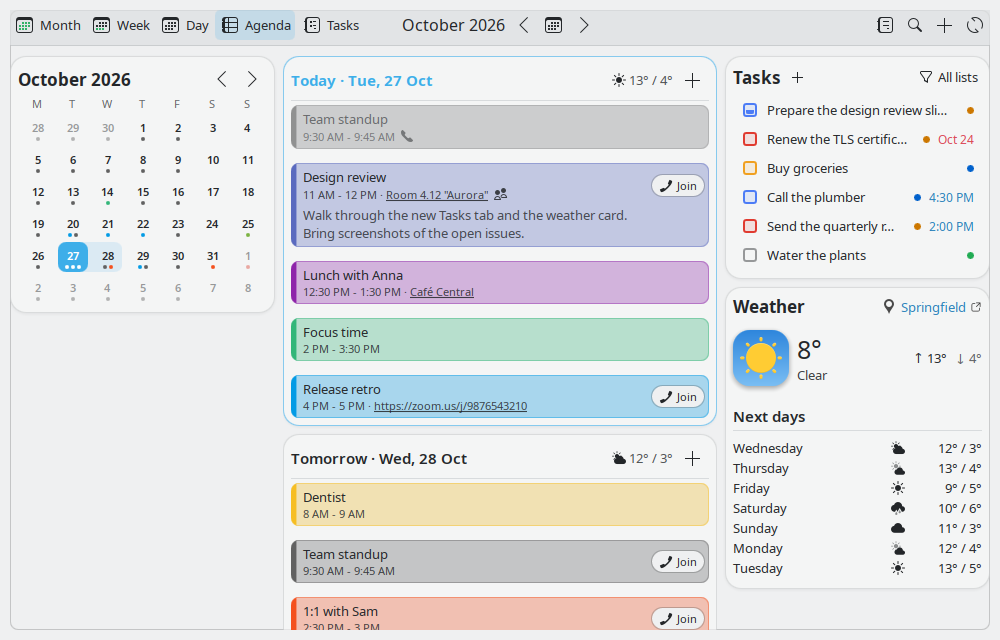
Month, Week, Day and Agenda. The Day view puts your hours, a small month, what's up next, today's tasks and the weather side by side.
Never late again
The clock shows your next meeting and a progress bar while it runs; an optional full-screen alert with one big Join button when it starts.
One-click Join
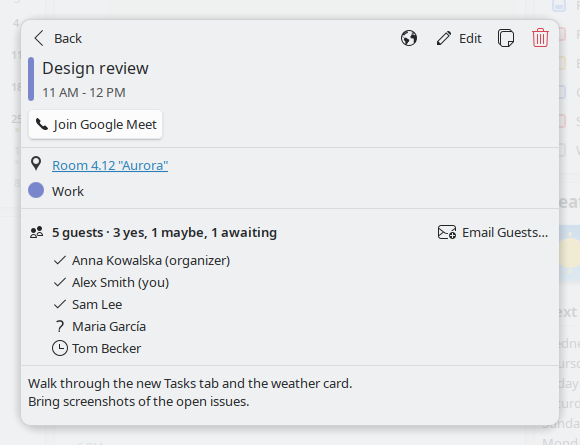
Google Meet, Zoom, Teams, Webex, Slack huddles and about 35 more, from the agenda, the clock or the notification.
Your tasks too
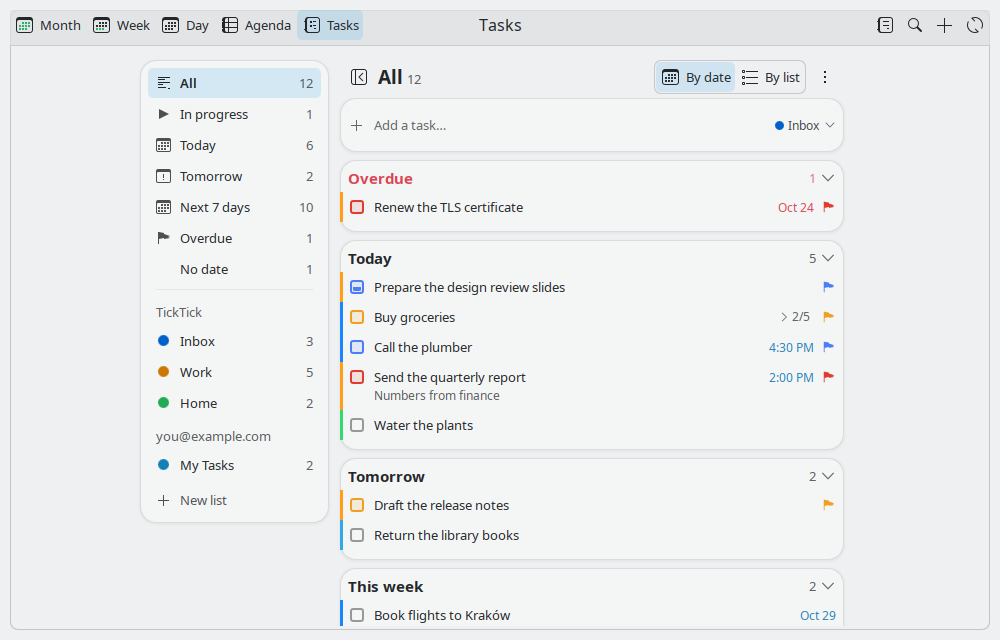
Google Tasks and TickTick in their own tab: smart lists, priorities, subtasks, quick add in plain sentences.
All your calendars
Several Google accounts, CalDAV (Nextcloud, Fastmail, iCloud…), KDE PIM (Akonadi), holidays and .ics files; an event in two calendars shows once.
Fast and offline-ready
Opens instantly with your last events and tasks, even without a network, and stays quick with busy calendars.
At home in Plasma
Rounded cards (solid or translucent) or a flat look, light and dark themes, translated into 20 languages.
Private by design
Sign-ins stay in your system keyring; no tracking, no servers of ours in between.
Screenshots
All shots use mock data. Click one to see it full size.
Install
From the KDE Store (recommended)
- Right click the panel > Add or Manage Widgets.
- Get New Widgets > Download New Plasma Widgets.
- Search for Event Calendar NG and click Install.
Or download it from store.kde.org. Updates show up in Discover and in the same Download New Plasma Widgets window.
From a release
Download the .plasmoid file from the
latest release, then:
kpackagetool6 -t Plasma/Applet -i eventcalendar-ng-*.plasmoidTo upgrade an installed Event Calendar, use -u instead of -i, then restart Plasma.
From source
git clone https://github.com/divinae/event-calendar-ng-plasmoid.git eventcalendar
cd eventcalendar
./install
./update pulls and reinstalls; ./uninstall removes the widget.
Requirements
KDE Plasma 6 and Python 3; KWallet or the Secret Service (secret-tool) keeps sign-ins. For
CalDAV and .ics calendars, two Python modules (icalendar, recurring-ical-events):
the install script adds them, or the widget's settings offer an Install button. KDE PIM calendars need
Akonadi. The full list is in the ReadMe.
Setup
- Add Event Calendar NG to a panel, or replace the Digital Clock with it.
- Right click it > Configure > Calendars: sign in with Google, add a CalDAV account or an .ics calendar.
- Weather: search for your city (Open-Meteo, no key needed).
Help and news
Report a problem
Something wrong or missing? Open an issue on GitHub. Settings > General > Troubleshooting turns on debug logging to help find it.
What's new
Every change, release by release, in the changelog; downloads on the releases page.
Translate
20 languages so far. Missing or wrong words in yours? Translations are plain .po files.
Support
Free and open source (GPL). If it saves your day, you can buy the developer a coffee on Ko-fi.
Authorization code
Usually the widget catches the sign-in by itself. If your browser landed here instead, paste the address to get the code for the widget.
Paste the address
How it works
This runs only in your browser: the address is read here, nothing is sent anywhere.
Steps
- Sign in from the widget's settings (Calendars > Google Calendar).
- Copy the whole address of the page you landed on.
- Paste it on the left, then copy the code into the widget.
HTTP 400 error?
- Make sure you copied the whole address.
- With your own client id, its redirect address must match exactly.
Privacy
The widget talks only to the services you set up (Google, your CalDAV server, the weather service you choose…), straight from your computer. There are no servers of ours in between and no tracking. Sign-ins and passwords stay in your system keyring. Details in the Privacy Policy.